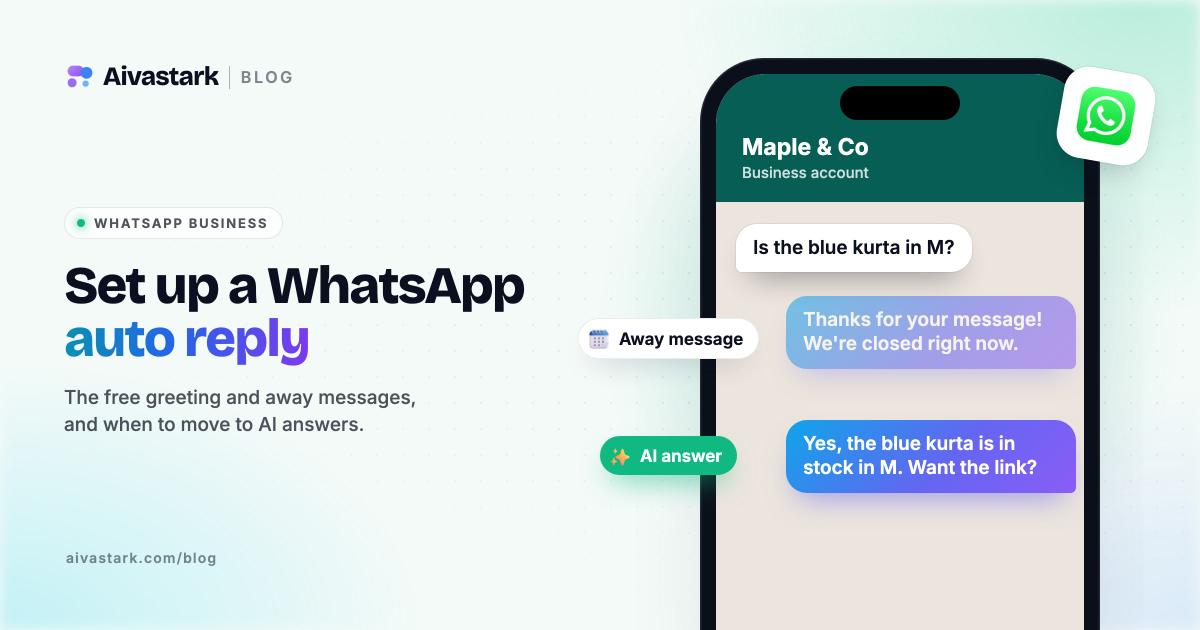
A WhatsApp auto reply is free in the WhatsApp Business app: a greeting message for first-time chats, an away message for closed hours, and up to 50 quick replies you pull up with "/". All three are fixed text, though. To answer real questions automatically, you need the WhatsApp Business Platform (the API) and a tool connected to it, such as an AI agent.
This guide covers the exact steps on Android and iPhone, what the free tools can't do, Meta's rules for automated replies on the API, and where an AI agent fits. Menu names are from WhatsApp's help center, checked 22 October 2026.
Can you set an auto reply on WhatsApp?
Yes, if your number runs on the WhatsApp Business app or the WhatsApp Business Platform. We found no auto-reply setting for the personal app, WhatsApp Messenger, in WhatsApp's help center.
Here are your options, from free and fixed to automated:
| Option | What it sends | Answers real questions? | Cost or availability |
|---|---|---|---|
| Greeting message (Business app) | Your welcome text, on a first message or after 14 days of no messages | No | Free app |
| Away message (Business app) | Your "we're away" text, always, on a schedule or outside business hours | No | Free app |
| Quick replies (Business app) | Saved messages you pick by typing "/" | No, you send each one | Free app |
| Meta Business Agent (Business app) | AI answers from your catalog, website and documents | Yes | Select businesses in limited countries, with a waitlist |
| WhatsApp Business Platform + a provider or AI agent | Automated replies through the API | Yes, if the tool can | Meta's per-message fees plus the tool's plan |
How do I set up a WhatsApp greeting message?
Open the Tools tab, tap Greeting message and switch it on. WhatsApp sends it when a customer messages you for the first time, or after 14 days of inactivity in their chat.
- From the Tools tab, tap Greeting message.
- Turn on Send greeting message.
- Edit the text. On Android, tap Greeting message, edit it and tap OK. On iPhone, tap the text under Message, edit it and tap Save.
- Tap Recipients and pick Everyone, Everyone not in address book (on iPhone, Exclude my contacts), Everyone except… or Only send to….
- On Android, tap Save.
If it isn't sending, check the causes WhatsApp lists first: the 14-day rule (someone who messaged you in the last 14 days won't get one), a recipient setting that leaves them out, or Meta Business Agent being connected, which switches greeting messages off.
How do I set up a WhatsApp away message?
Go to Tools > Away message, turn it on, then choose when it sends and who gets it. These are the steps from WhatsApp's away messages page:
- Open Away message. In the WhatsApp Business app, go to the Tools tab and tap Away message.
- Turn it on. Turn on Send away message.
- Write the message. Tap the message to edit it, then tap OK on Android or Save on iPhone.
- Choose a schedule. Tap Schedule and pick Always send, Custom schedule or Outside of business hours. The last option only appears once business hours are set in your business profile.
- Pick recipients. Tap Recipients and choose Everyone, Everyone not in address book, Everyone except… or Only send to….
- Save and stay online. On Android, tap Save. Keep the phone connected: WhatsApp says your device must have an active internet connection to send away messages.
How to set up quick replies on WhatsApp?
Quick replies are saved messages you send yourself. You can store up to 50 and type "/" in any chat to pick one.
- From the Tools tab, tap Quick replies.
- Tap the add (+) button.
- Tap Message (on iPhone, Enter message) and write the reply. It can include images or videos, but media in quick replies doesn't work on WhatsApp Web or Desktop.
- Tap Shortcut and set a keyboard shortcut.
- Tap Save.
To use one, open a chat and type "/". WhatsApp lists all your quick replies, including default ones it builds from your business profile, such as your hours and address. You can also tap the attach icon and choose Quick reply (on iPhone, Quick replies). The text lands in the message box, so you can edit it before you send.
That last step matters: a quick reply goes nowhere until you tap send. It saves typing; it isn't automation.
Can I set up an automatic reply for my personal WhatsApp account?
Not natively. Greeting messages, away messages and quick replies are WhatsApp Business app features, and we found no auto-reply setting for WhatsApp Messenger in WhatsApp's help center.
The supported route is to move your number to the free WhatsApp Business app. WhatsApp's move guide recommends a backup first; the Business app then detects your number, asks for access to your chat history and media, and verifies the number. Two catches: you can't use the same number in both apps at once, and contacts saved inside WhatsApp itself aren't supported in the Business app yet, so save them to your phone's address book before you switch.
Skip modded apps that promise auto replies. WhatsApp names GB WhatsApp, FM WhatsApp and TM WhatsApp as unofficial apps, says using them violates its Terms of Service, and warns the account can be temporarily or permanently banned. Its help center also says bulk or automated messaging violates its terms, and points businesses to two tools: the WhatsApp Business app and the WhatsApp Business Platform.
What can't the free auto replies do?
They send the same fixed text to everyone. A greeting can't tell a customer whether a size is in stock, and an away message can't quote a delivery charge. Other limits, from WhatsApp's own pages:
- A greeting goes only on a first message or after 14 days of quiet, so regular customers rarely see one.
- Greeting and away messages need your phone online to send.
- Quick replies save typing, but you still send each one.
Meta is adding AI inside the app. Meta Business Agent can answer questions about your hours, location, products, prices, discounts, payment and shipping, using your catalog, website, documents and, if you choose, your past chats. For now it is "only available in limited countries to select businesses", with a waitlist. Connecting it switches off greeting and away messages, and Meta says messages in chats where it's connected are collected "to improve AI at Meta". If you see AI agent in your Tools tab, it's worth a look.
How do you get real automated answers on WhatsApp?
Move the conversation to the WhatsApp Business Platform. Meta says you can use it directly or through a Business Solution Provider; most small businesses use a provider or a platform that handles the setup. Four rules shape what any tool can do there:
- The 24-hour window. When a customer messages you, a 24-hour customer service window starts, and each new message resets it. Inside it you can send normal replies, which is where automated answers live.
- Templates outside it. Once the window closes, you can only send template messages: pre-written messages that Meta reviews and must approve, each categorized as marketing, utility or authentication.
- Per-message fees. Meta has charged per message since 1 July 2025. From 1 October 2026 it also charges for service messages (normal replies inside the window) beyond a free tier of 1,000 a month for each business phone number. Our WhatsApp Business API pricing guide for Pakistan breaks down the rates.
- Coexistence. You can keep the app. Meta's onboarding guide for Business app users, which support teams call "Coexistence", connects a number that stays on the WhatsApp Business app (version 2.24.17 or higher) to the Cloud API. Messages you send from the app stay free, and up to 180 days of one-to-one chat history can sync. Some things change: broadcast lists are disabled in the app, and group chats don't sync.
One practical tip: Meta's table lists greeting and away messages as unchanged in the app after onboarding. If an AI agent is answering through the API, we'd switch them off so customers don't get a canned message on top of a real answer.
Where does an AI agent like Aivastark fit?
Full disclosure: Aivastark is our product. It is an AI agent that answers WhatsApp messages through the WhatsApp Business Platform, available from Aivastark's Starter plan at $39 a month. It's a fit when customers ask real questions:
- Answers from your content. It answers from your website, uploaded files (PDF, DOCX, TXT, Markdown), FAQs and your Shopify or WooCommerce catalog.
- Roman Urdu and voice notes. It replies in the script the customer writes in, so Roman Urdu gets Roman Urdu back, and it answers typed messages in 80+ languages. Voice notes are transcribed and answered in text; it doesn't send voice replies.
- Hands off to a person. With handoff switched on, it passes the chat to your unified inbox when the customer asks for a person, sounds upset or still isn't helped after repeated tries. With coexistence, a reply from your phone takes that chat over.
- Your own account. It connects your own WhatsApp Business account, so Meta bills message fees to you directly and Aivastark adds no markup.
Where it doesn't fit: it sends no broadcasts, template campaigns, bulk messages or order confirmations. If those are the job, a broadcast-first tool suits you better. And if all you need is a closed-hours notice, the free away message is enough. See how it works on WhatsApp, the guide for Pakistani online stores and plans.
Bottom line
Start with the free tools: a greeting message, an away message for closed hours and a set of quick replies cost nothing in the WhatsApp Business app. When customers keep asking questions those fixed messages can't answer, move to the WhatsApp Business Platform, keep the app through coexistence if you like, and let an AI agent answer inside Meta's 24-hour window. Running Instagram as well? Read our Instagram auto reply guide.
Frequently asked questions
How do I set up an automatic reply?
On WhatsApp, install the free WhatsApp Business app, go to the Tools tab and tap Away message. Turn on Send away message, write your text, pick a schedule (Always send, Custom schedule or Outside of business hours), choose recipients and save. For a welcome on first contact, use Tools > Greeting message. For automated answers to questions, connect the WhatsApp Business Platform through a provider or an AI agent.
Does a WhatsApp away message work when my phone is off?
No. WhatsApp's help center says your device must have an active internet connection to send away messages and greeting messages, so a phone that is switched off or offline won't send them. Tools on the WhatsApp Business Platform send replies through the API instead, so they don't depend on your phone being online, though Meta's 24-hour customer service window still applies.
What is the 14-day rule for WhatsApp greeting messages?
WhatsApp sends a greeting message when a customer messages you for the first time, or when they message you after 14 days of inactivity in their chat with you. If a customer has messaged you within the last 14 days, they won't get a greeting. That is why regular customers rarely see it, and why it can seem to stop working.
Can I use the WhatsApp Business app and the API on the same number?
Yes, through what Meta's support channels call coexistence. A business on WhatsApp Business app version 2.24.17 or higher can connect its number to the Cloud API through a provider and keep using the app for one-to-one chats. Messages sent from the app stay free, while API messages follow Meta's pricing. Broadcast lists are disabled in the app and group chats don't sync.
Does WhatsApp charge for automatic replies?
Greeting messages, away messages and quick replies in the WhatsApp Business app are free. On the WhatsApp Business Platform, Meta charges per message. From 1 October 2026, normal service replies inside the 24-hour window are free up to 1,000 a month for each business phone number, then charged. Template messages sent outside the window are charged by category and country.
Sources
- WhatsApp Help Center: How to use greeting messages
- WhatsApp Help Center: How to use away messages
- WhatsApp Help Center: How to use quick replies
- WhatsApp Help Center: About moving between WhatsApp Messenger and the WhatsApp Business app
- WhatsApp Help Center: How to move your WhatsApp Messenger account to the WhatsApp Business app
- WhatsApp Help Center: About unofficial apps
- WhatsApp Help Center: Unauthorized use of automated or bulk messaging on WhatsApp
- WhatsApp Help Center: About using Meta Business Agent to chat with customers
- WhatsApp Help Center: Greeting and away messages are disabled when AI is onboarded
- WhatsApp Help Center: About WhatsApp Business products
- Meta for Developers: WhatsApp Business Platform pricing and the customer service window
- Meta for Developers: WhatsApp message templates overview
- Meta for Developers: Onboard WhatsApp Business app users (coexistence)