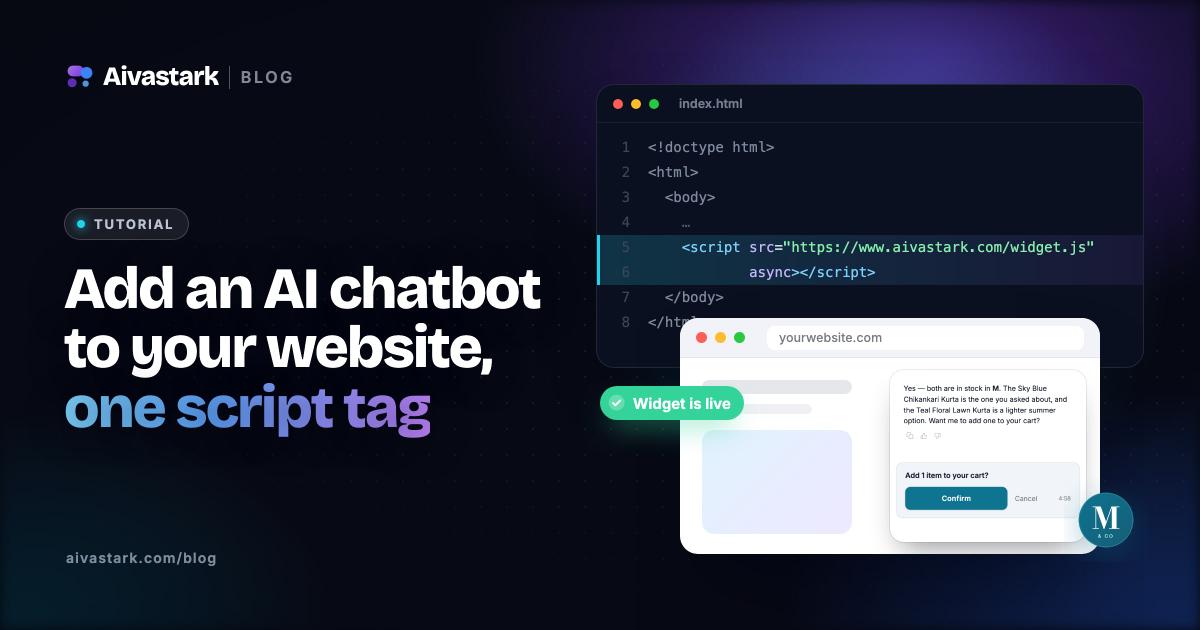
Adding an AI chatbot to your website takes about 10 minutes: create an account, point the platform at your existing content, then paste one <script> tag before your closing </body> tag. No code and no engineering time are required.
Adding an AI support chatbot to your website used to mean months of engineering work. Today, with a white-label AI chatbot platform like Aivastark, the whole process · from zero to a live, branded AI widget answering real customer questions · takes about 10 minutes.
Here's exactly how it works, step by step.
What you'll need before you start
- Your website (any platform · HTML, React, WordPress, Webflow, Squarespace, Wix, Shopify)
- Your knowledge base content · this can be URLs, PDFs, Google Drive documents, or a GitHub repo
- An Aivastark account (free to start)
You don't need to know how to code. The embed step is a single copy-paste of a <script> tag · the same way you'd add Google Analytics.
Step 1 · Create your account and project
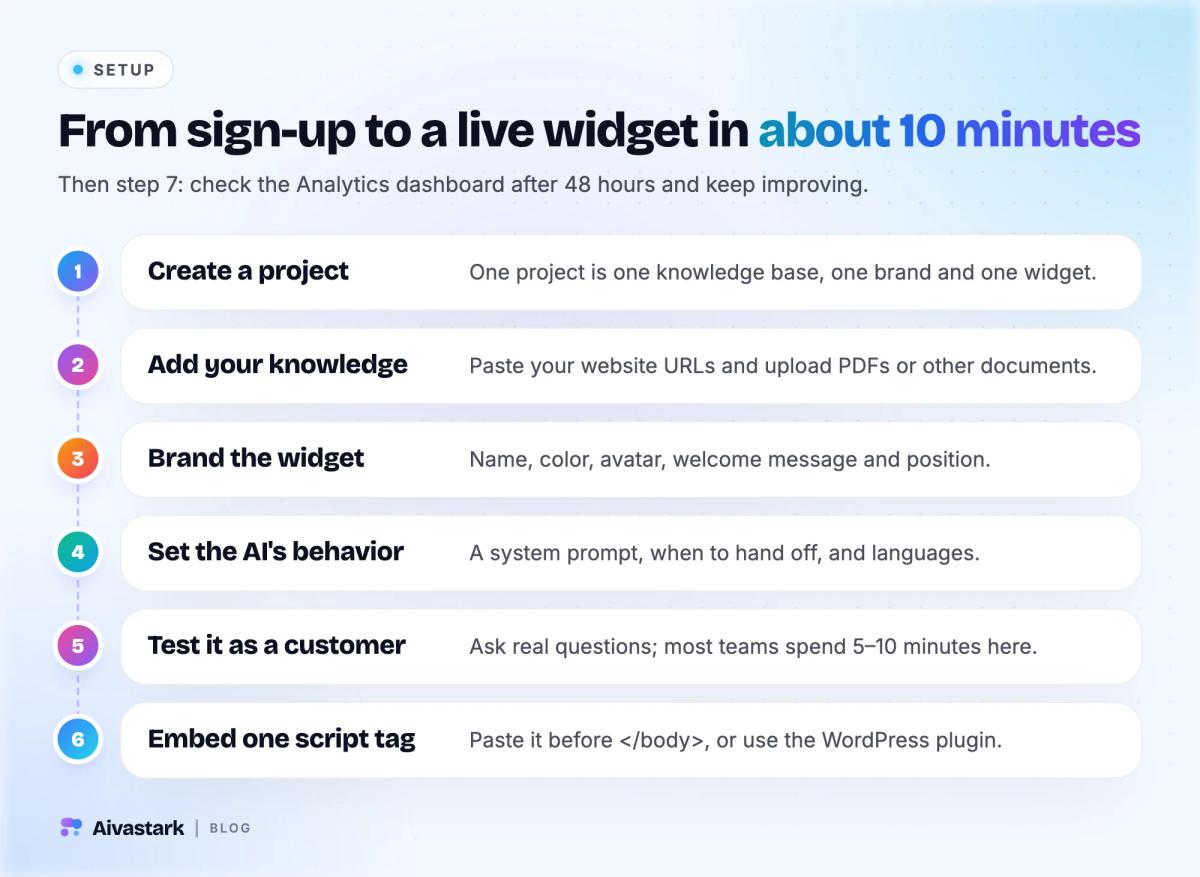
Sign up at aivastark.com and create your first project. A project represents one AI chatbot deployment · one knowledge base, one brand, one widget. You can have multiple projects if you're managing AI chatbots for multiple products or clients.
Give the project a name (this is for your reference · your customers won't see it) and proceed to onboarding.
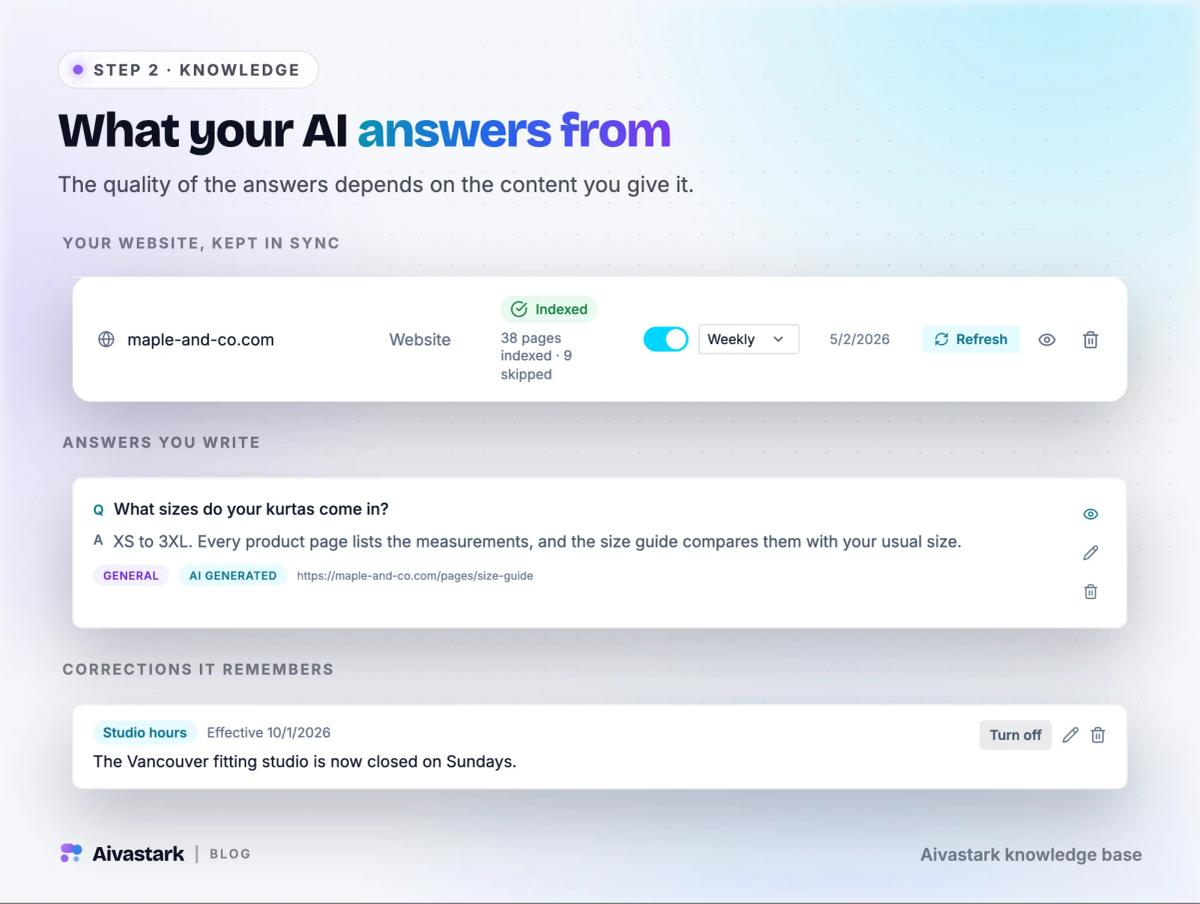
Step 2 · Upload your knowledge base
This is the most important step. The quality of your AI's answers depends entirely on the quality of the content you give it.
Aivastark ingests from:
- Website URLs · paste your docs or support site URL. Aivastark crawls it automatically, following internal links up to your configured depth.
- PDFs and documents · upload files directly (product manuals, spec sheets, policy documents, onboarding guides).
- Google Drive · connect your Drive and select which folders or files to ingest.
- GitHub repositories · ideal for technical docs, README files, or code-level documentation.
Once you add sources, Aivastark chunks the content, generates embeddings, and stores it in your knowledge base. This typically takes 1–3 minutes depending on the size of your content.
Tip: Start with your most-asked support questions and the pages that answer them. You can always add more sources later · the AI retrains automatically on a schedule.
Step 3 · Customize your widget's branding
In the Widget settings, configure how your AI assistant looks and feels:
- Persona name · give the AI a name that fits your brand (e.g., "Aria", "Max", "Support Bot"). This is the name your customers will see.
- Brand color · the widget header, send button, and active states use your primary brand color.
- Avatar / logo · upload an icon or avatar for the AI persona.
- Welcome message · the first thing users see when they open the chat. Keep it specific: "Hi! I'm Aria, here to answer questions about [product]" converts better than a generic greeting.
- Position · bottom-right or bottom-left. Bottom-right is the convention; bottom-left works better when other tools occupy the right corner.
You can preview your widget in real time as you make changes.
Step 4 · Configure AI behavior
Under AI Settings, you control how the chatbot behaves:
- System prompt · give the AI a role and constraints, e.g. "You are Aria, a support assistant for Acme SaaS. Only answer questions about our product. If you're unsure, say so and open a ticket."
- Escalation threshold · set when the AI should hand off to a human. By default this triggers when confidence is low or after two unanswered attempts.
- Languages · select which languages the widget supports. The AI auto-detects the user's language from their first message, so no configuration is needed per session.
Step 5 · Test the chatbot before going live
Use the built-in test interface to have a conversation with your AI as if you were a customer. Ask it the questions you'd expect real users to ask, and check:
- Are the answers accurate and grounded in your docs?
- Does it cite the correct source?
- Does it escalate gracefully on topics it doesn't know?
- Does it stay in your configured language?
If anything is off, refine your knowledge base (add missing docs, remove outdated ones) or adjust the system prompt. Most teams spend 5–10 minutes here before going live.
Step 6 · Embed the widget on your website
Go to the Integrations page. You'll see a single script tag:
<script src="https://cdn.aivastark.com/widget.js" data-key="YOUR_EMBED_KEY" defer></script>
Copy and paste this into the <head> or just before the closing </body> tag of your website. That's it. The widget loads asynchronously so it doesn't affect your page speed.
Platform-specific instructions:
- WordPress · paste into your theme's
header.php, or use the official Aivastark WordPress plugin for one-click setup (paste your Widget Key, no code). - Webflow · go to Project Settings → Custom Code → paste in the Head Code or Footer Code section.
- Squarespace · Settings → Advanced → Code Injection → paste in the Header section.
- Shopify · Online Store → Themes → Edit Code →
theme.liquid→ paste before</head>. - React / Next.js · import using the React component snippet available in the Integrations page.
Step 7 · Monitor and improve
Once live, check the Analytics dashboard after the first 48 hours. Key metrics to watch:
- Deflection rate · the percentage of conversations resolved by the AI without a human. 50–70% is a healthy target in the first month.
- Escalations · conversations where the AI couldn't help and opened a ticket. Review these to find knowledge gaps.
- Top questions · the most common things users ask. These are candidates for new FAQ entries or documentation pages.
Aivastark auto-retrains on a schedule as you update your docs, so your AI stays current without manual intervention.
Total time: under 10 minutes
The setup process from account creation to a live widget is designed to take less than 10 minutes for most websites. The majority of that time is spent connecting your knowledge base · the actual embed is a single copy-paste.
If you're managing multiple sites or building this for clients, you can duplicate project settings across projects so subsequent deployments take even less time.
Vertical-specific deployment guides
The generic 10-minute setup above works for any business. If you're in a specialized vertical, the following pages cover the integrations and compliance considerations specific to your industry:
- AI receptionist for dental practices · answers patients 24/7 and books appointments into Google Calendar or Cal.com.
- AI intake agent for law firms · qualifies inbound case leads, collects intake details and books consultations; it is instructed not to give legal advice.
- AI agent for e-commerce stores · where-is-my-order lookups, return requests, sizing questions and add-to-cart on Shopify and WooCommerce.
For background reading, see what is a white-label AI chatbot and white-label vs building your own.
Steps at a glance
Sign up for Aivastark
Create a free Aivastark account at aivastark.com.
Connect your knowledge base
Upload PDFs, paste URLs, or connect Google Drive / GitHub. Aivastark crawls and indexes within minutes.
Customize the widget
Set the widget's name, brand colors, position, and welcome message in the dashboard.
Test the AI
Use the live preview to ask sample questions and verify the answers are accurate.
Embed the script tag
Copy the single-line <script> tag from the dashboard and paste it into your website's <head>.